Curtain Call banner

Theatre sound, from rehearsal to opening night.

Curtain Call is a free desktop app for theatre sound. Keep the script, audio library, cue list and locked Show Player in one portable project: build cues with volume, fades, loops and ducking, rehearse, then run the show with the big GO button. Multilingual subtitles, deaf and hard-of-hearing audience access and audio description sit alongside the sound.

Latest build: 1.1.2  ·  build 20261117

Get started

Six steps take you from an empty project to a show you can run. Everything below works in the free build; optional local speech and translation models are installed separately, and subtitles, HoH access and Audio Description are part of the same project.

  1. Install and open

    Download the package for your platform from the Downloads section. Choose an installer or a portable package for Windows, macOS or Linux.

  2. Create a project

    The welcome page offers New project, Open project and recent projects. A project is a single portable .ccshow file: script, audio, cues, notes and the video all travel together. The demo show is attached to the release, not bundled.

  3. Collect the audio

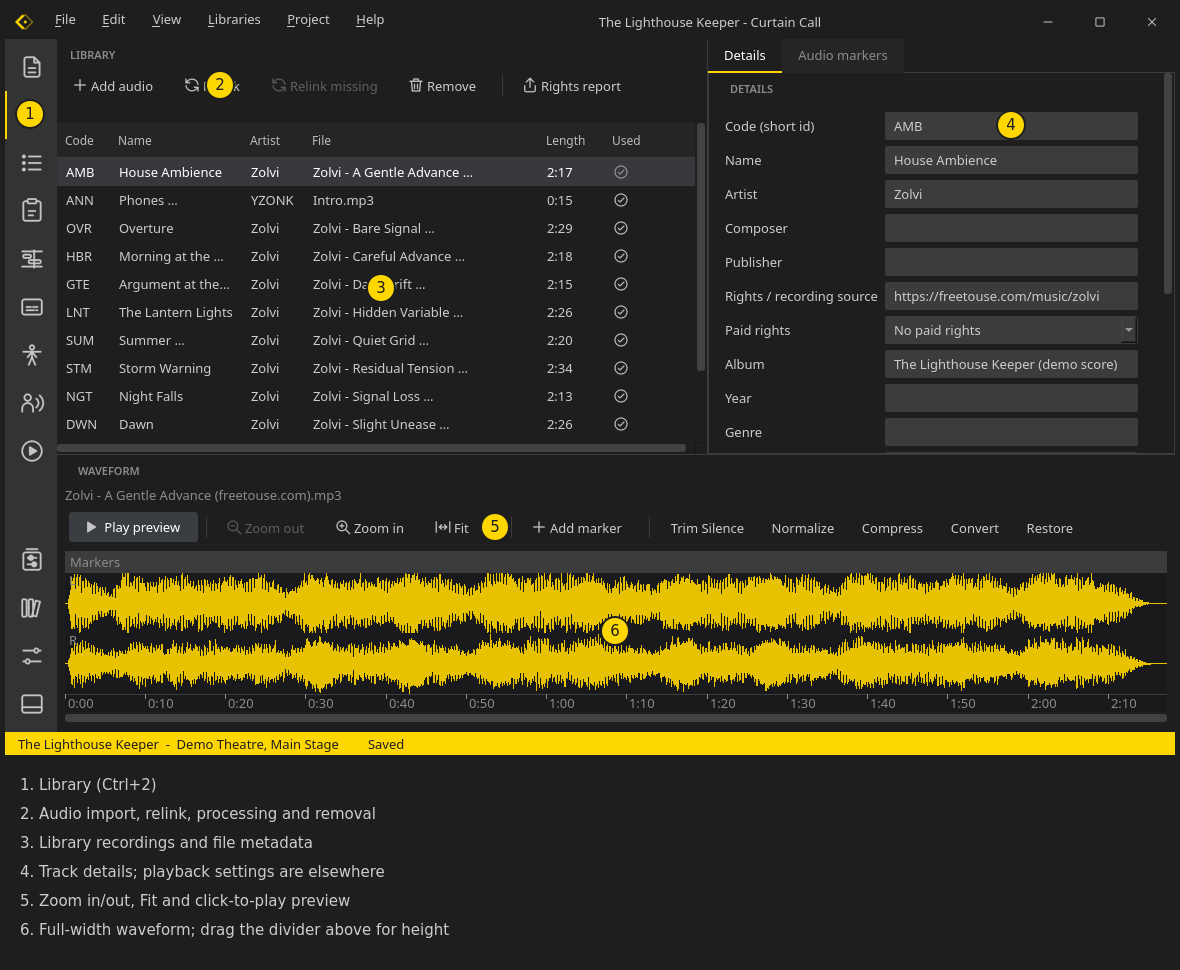
    In Library (Ctrl+2) import the recordings. Files are copied into the project, keeping the originals untouched, then named, coded and previewed safely without leaving the library.

  4. Build the cue list

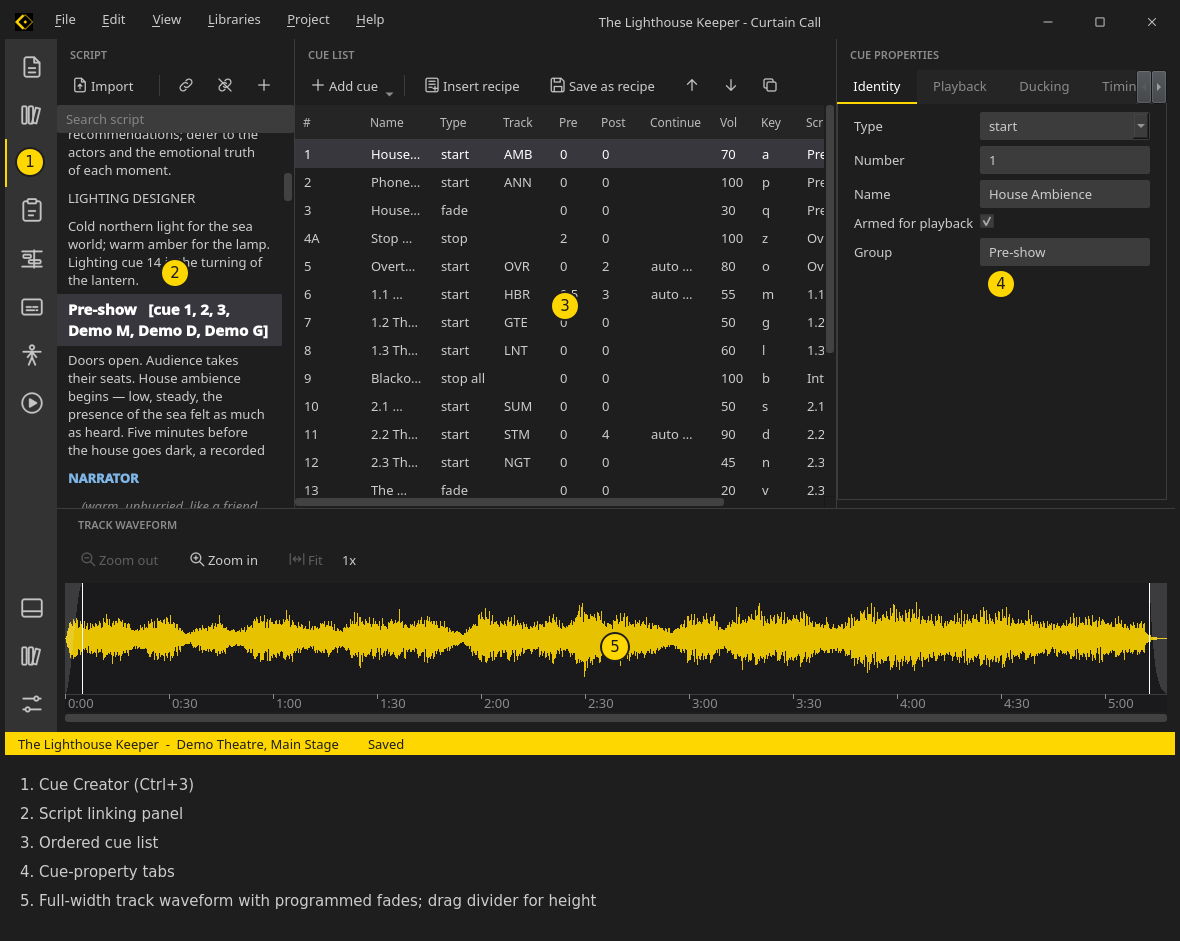
    In Cue Creator (Ctrl+3) order the cues and give each one a level, fades, loops, ducking, waits and a hotkey. Fades are shaped directly on the cue waveform, and cues can be linked to lines in the script.

  5. Rehearse

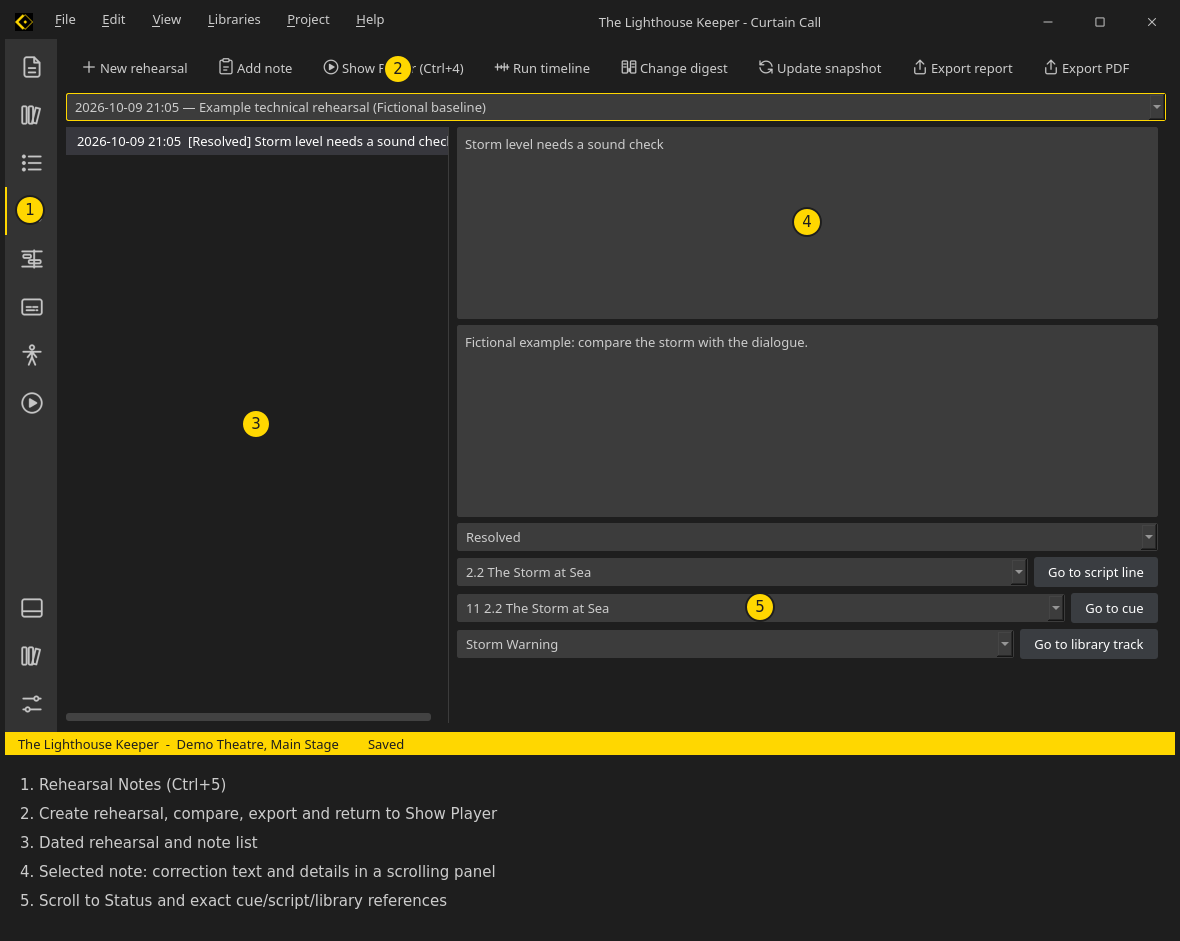
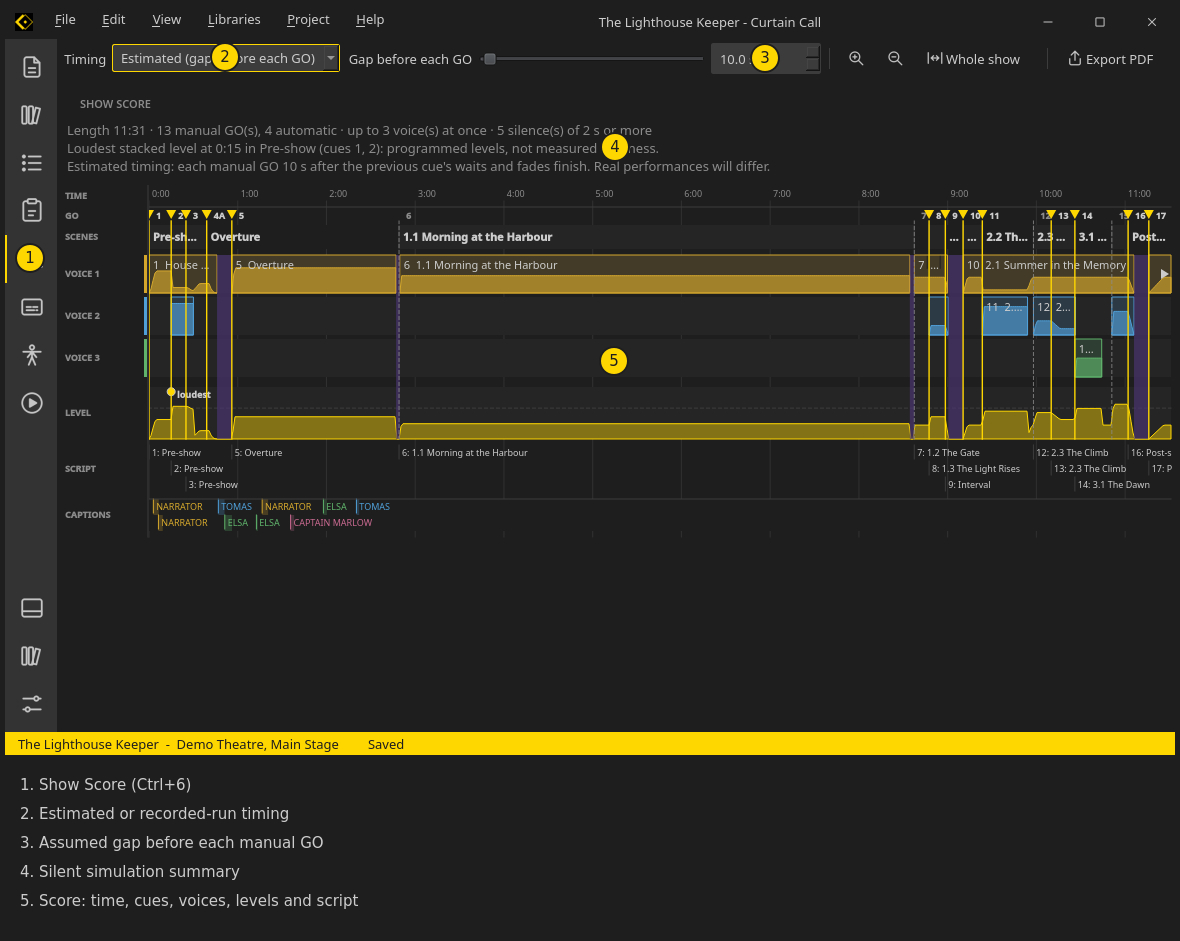
    Run the show quietly as often as you like. Rehearsal Notes (Ctrl+5) keeps dated notes against stable cue references, and Show Score (Ctrl+6) draws a silent timeline of levels, GO markers and silences that you can export for the team.

  6. Run the performance

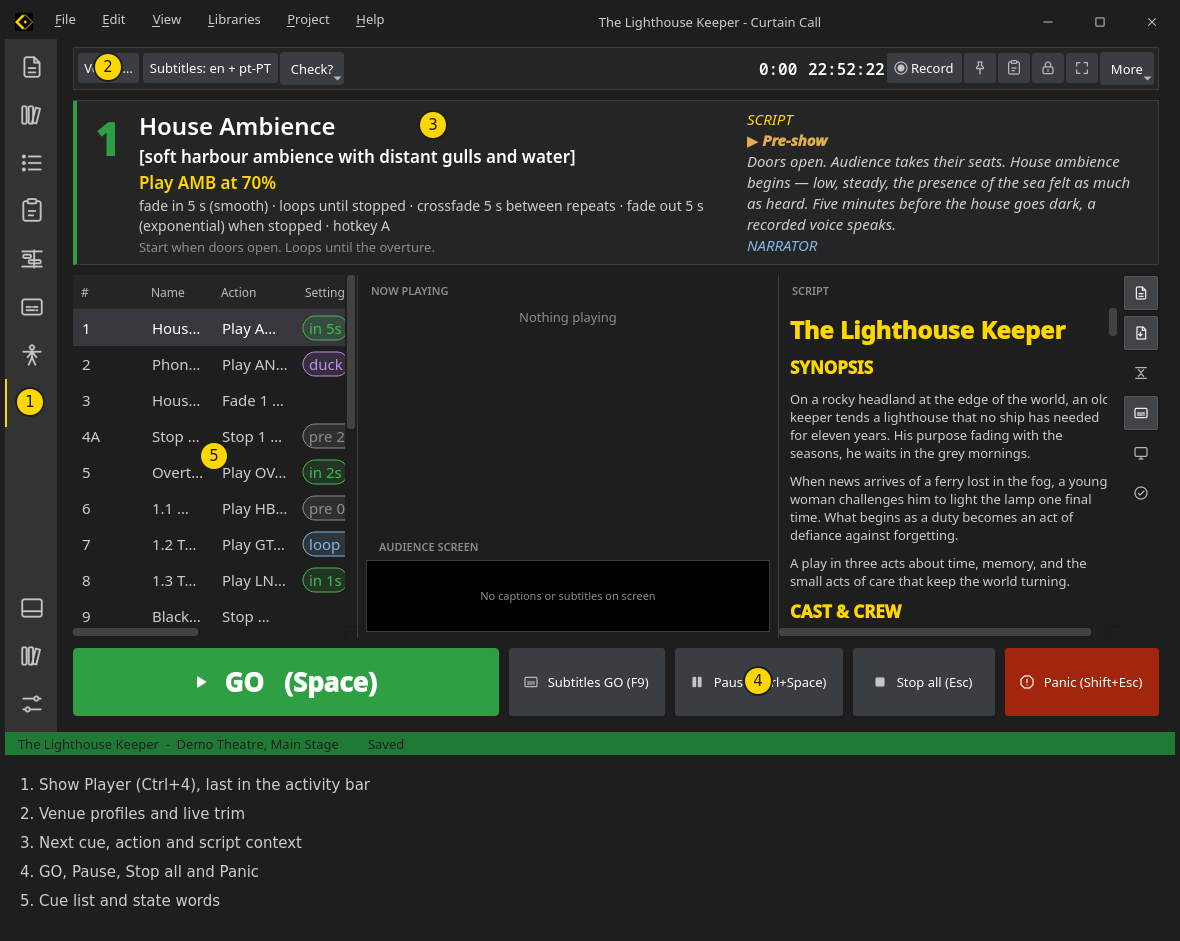
    Open Show Player (Ctrl+4) for the performance view: big GO button, screen lock, and safety checks around playback. Audio keeps playing while you switch modes, and the session log records what happened.

Subtitles (Ctrl+7), HoH access (Ctrl+8) and Audio Description (Ctrl+9) are ready when the audience needs them, and Export writes every deliverable, a clean copy for sharing or a zip for email. Press F1 in the app for the user guide, which starts with a single doorbell cue.

What's new in v1.1.2

Subtitle regions now have visible cyan corner and edge boxes. Drag them to stretch a region directly, drag inside to move it, or use the arrow keys for precise edits. Percentage fields and sliders stay synchronized.

Standalone builds now include trusted HTTPS certificates for demo, font and optional model downloads, fixing certificate errors on systems with different trust-store paths. Certificate verification remains enabled.

The downloads below contain the complete v1.1.2 app. Install or extract and run directly; no older version or separate patch is required. Existing self-updating installations can optionally use Help > Check for updates. Linux deb and tar.gz packages do not self-update.

Since v1.1.0, installed copies can update themselves: the Windows installer and portable zip, the Linux AppImage and the macOS app download each new patch — only the changed files — and restart into the new version after confirmation.

Preferences control how often a startup check runs and how many days a fresh patch waits before it is offered. Packaged copies also register the app icon and open .ccshow files on double-click for the current user.

Linux X11/XWayland startup has an unresolved libxkbcommon crash. Read the current notes and known limits before choosing a package. The separate web application is unmaintained.

Nine modes, one project

Every mode shares the same project. Activity-bar order follows the work; Show Player stays last, while its shortcut remains Ctrl+4.

Switching modes does not stop audio. Use Ctrl+4 to return to the performance view.

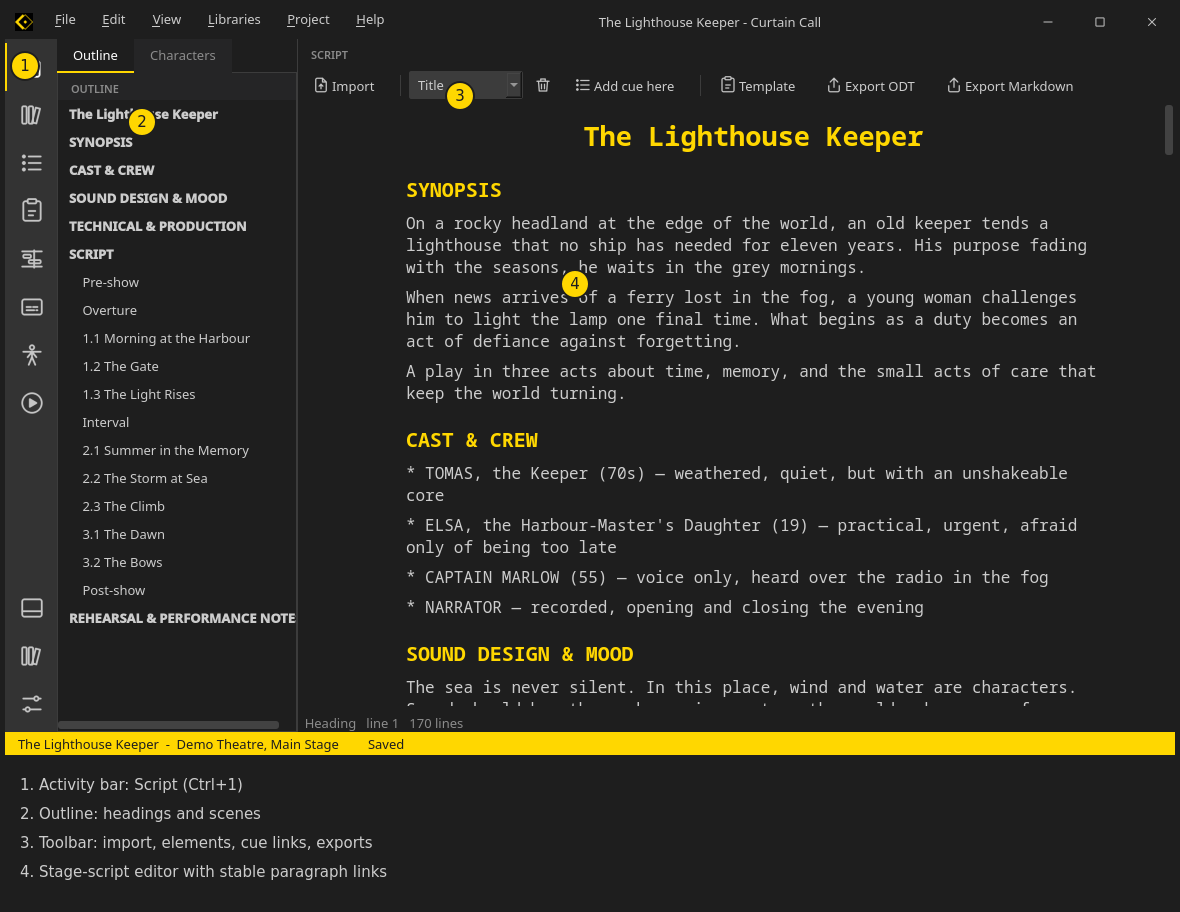
Script

Script mode

Write and edit in stage-script layout. Keep scenes, characters, dialogue and action structured; find passages and link cues to script lines.

Library

Library mode

Keep imported recordings in the project library, add names, codes and metadata, inspect the full waveform and preview tracks safely.

Cue Creator

Cue Creator mode

Build ordered cues that call library tracks. Set playback, fades, loops, ducking, waits and hotkeys on each cue; shape fades on its waveform.

Rehearsal Notes

Rehearsal Notes mode

Keep dated rehearsal iterations and notes with stable cue, script and library references. Export a printable report for the team.

Show Score

Show Score timeline with cue bars, voice lanes, GO markers, scene labels and programmed level

See a silent, read-only what-if timeline with voice lanes, GO and scene markers, programmed levels and silences. Use estimated or recorded-run timing; export A3 PDF.

Subtitles

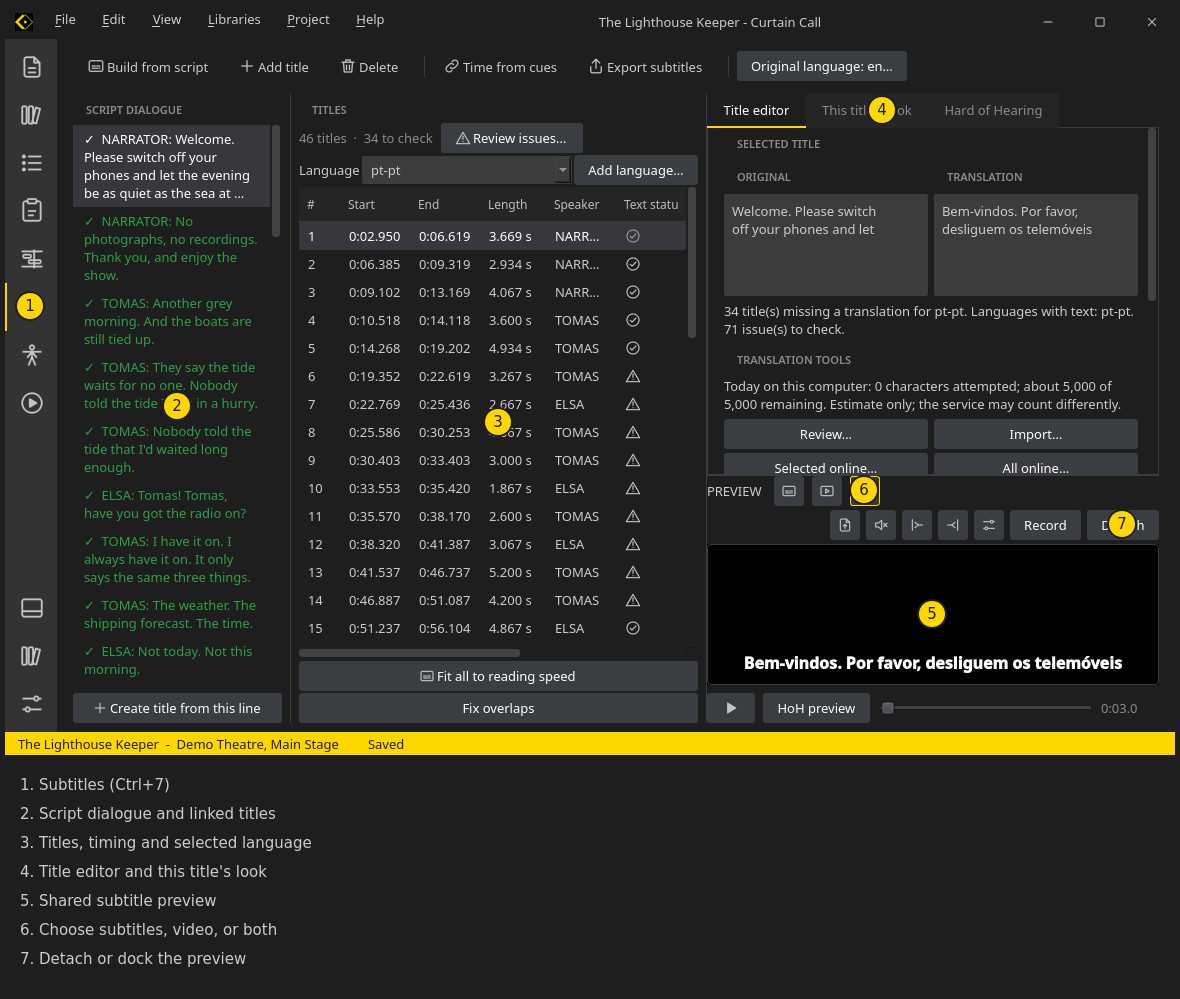
Subtitles mode with script dialogue, timed title list, translation editor and silent preview

Build timed titles from script dialogue, time them by hand or from Show Score cue firing times, check reading speed, and export WebVTT or SRT. Optional offline models are downloaded through the app on supported Linux systems; they are not bundled. Translator setup additionally needs system Python 3 and venv support.

HoH Accessibility

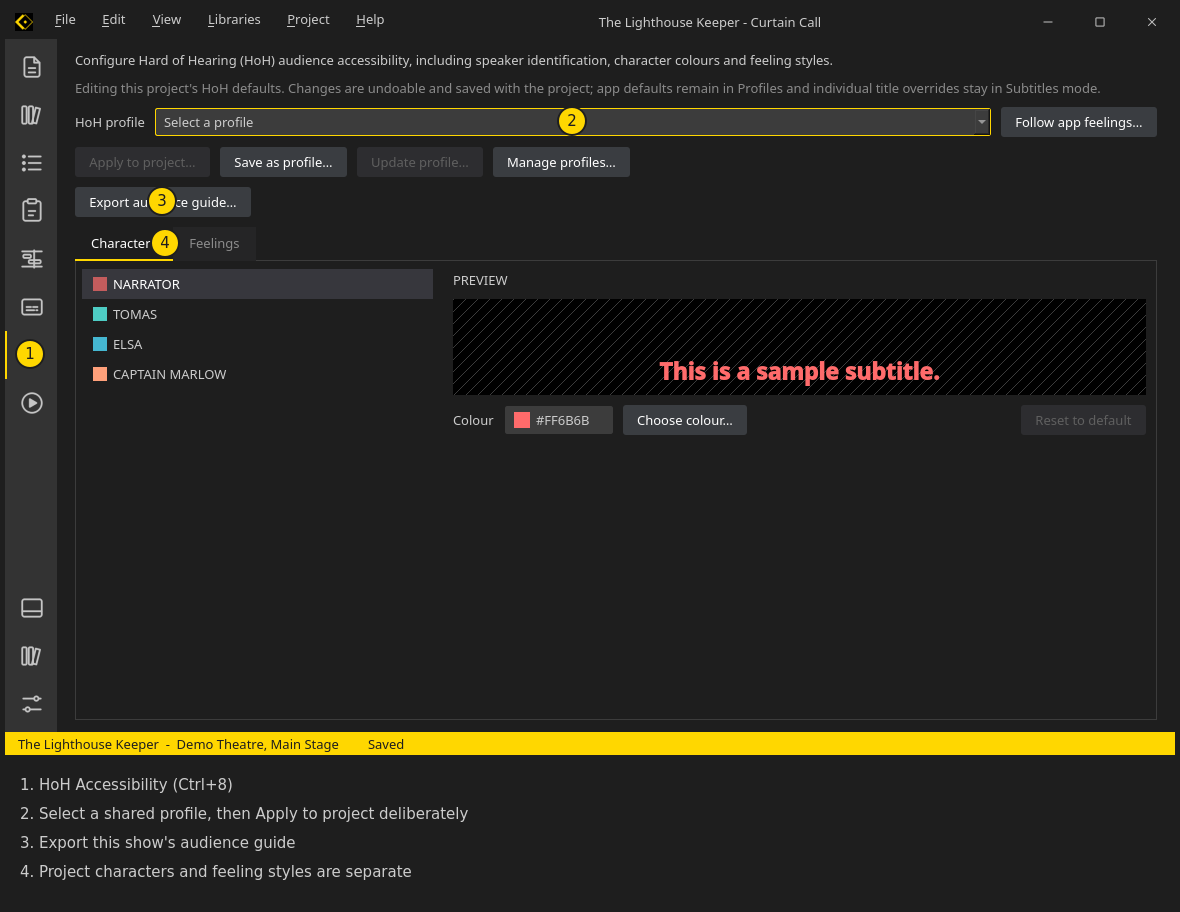
HoH Accessibility: project character colours, shared profile selection and audience guide export

Prepare speaker identification, feeling styles and descriptions for deaf and hard-of-hearing audiences. Apply profiles deliberately, keep project overrides separate, and export an audience guide. Live movement is optional and starts off by default. Ctrl+8 opens the editor; Ctrl+H toggles the live look.

Audio description

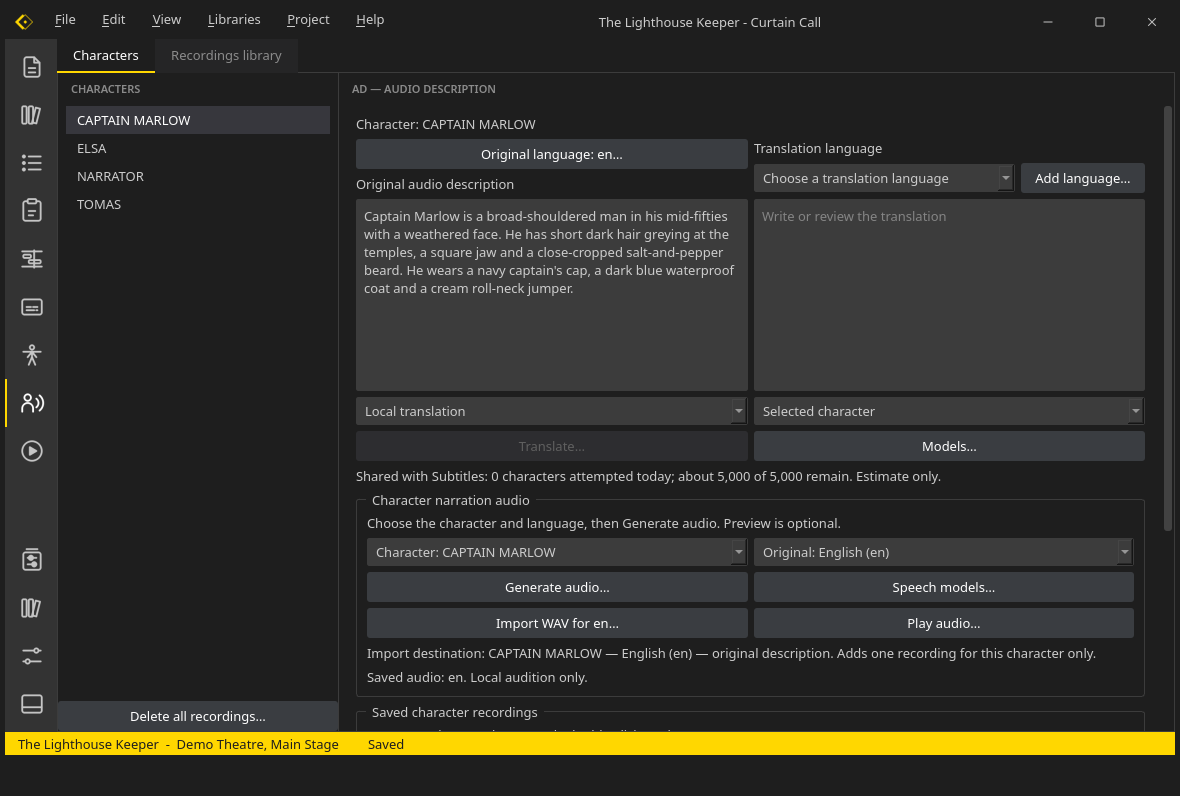
Audio description authoring with character texts, language selection and saved narration

Prepare character descriptions and translations, generate narration with separately installed local speech models, import WAV recordings and audition them. Ctrl+9 opens the editor. Live AD cue timing and audience routing are not included.

Show Player

Show Player performance view with next cue and live playback controls

Performance view with next cue, large GO, Now playing strips, Stop all, Panic and cue hotkeys. Preflight can flag missing files. Subtitles have their own GO (F9), separate from audio GO; rehearse both outputs with the real venue equipment before a show.

Plan for the room. Keep the limits clear.

Venue facts, equipment references and a production’s room profile are related, but they are not the same record. The local reference libraries are available without opening a project.

01 / PLACE

Venue list

Keep your venues and performance spaces in one place. Browse the built-in list or add your own, with contacts, addresses, capacity, stage dimensions and practical notes for each room.

Find the right space for your production, from theatres and auditoriums to amphitheatres, music clubs and cultural centres.

Venue data © OpenStreetMap contributors, ODbL.
02 / EQUIPMENT

Video and lighting catalogues

Browse model-level specifications and maintain personal entries alongside factory references: 16 video-projector models and two stage-lighting fixture models. Source checks apply to specific fields, not to an entire product or technical rider.

03 / INSTALLATION

Projector installations

Record individual projectors at a saved venue, with placement, orientation, measured height, network details and calibration-file references. This is documentation only: the app does not calculate rig geometry, map video or control equipment.

PER-PROJECT ROOM PROFILE

Keep a room’s gain separate from the show mix

A project can carry its own venue profiles with a reviewed −24 to +6 dB output trim, device-name note and manual setup checklist. Preview and approve changes with audio stopped; the profile does not change cue or master settings.

Important: Profiles are project data, not automatic calibration. Curtain Call does not route audio, apply EQ, verify a device connection or control a projector or lighting fixture. A matching device name is only a note; check the real signal path with the venue.

What’s inside

Eight cue types

Start, Fade, Stop, Stop All, Group, Delay, Memo and Placeholder. Each type shows only the fields that apply.

Ducking

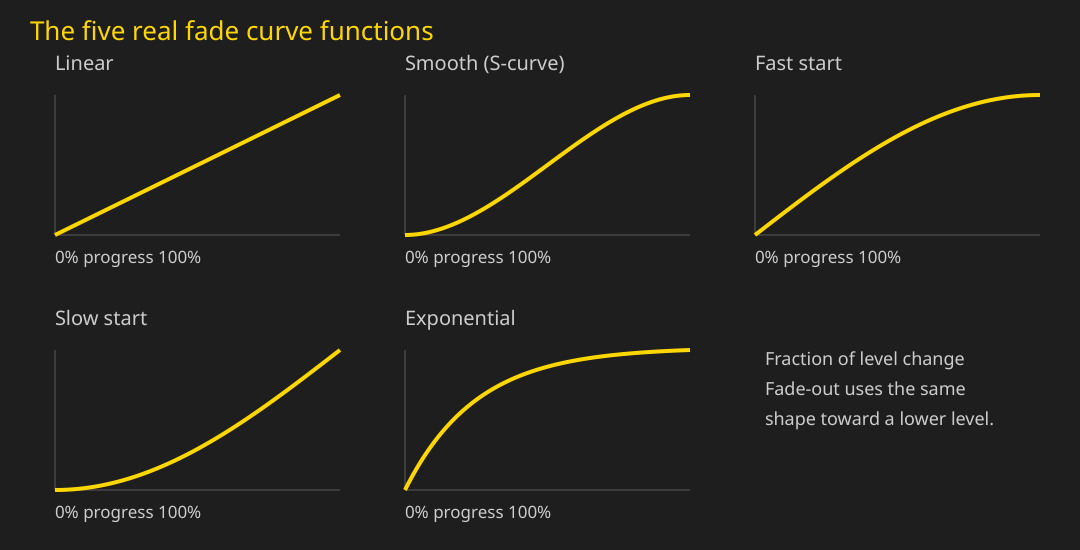
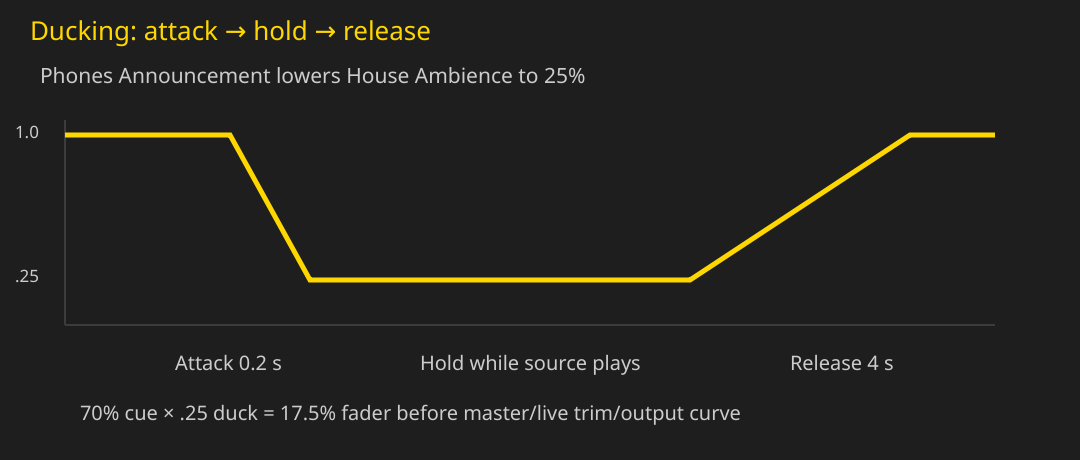
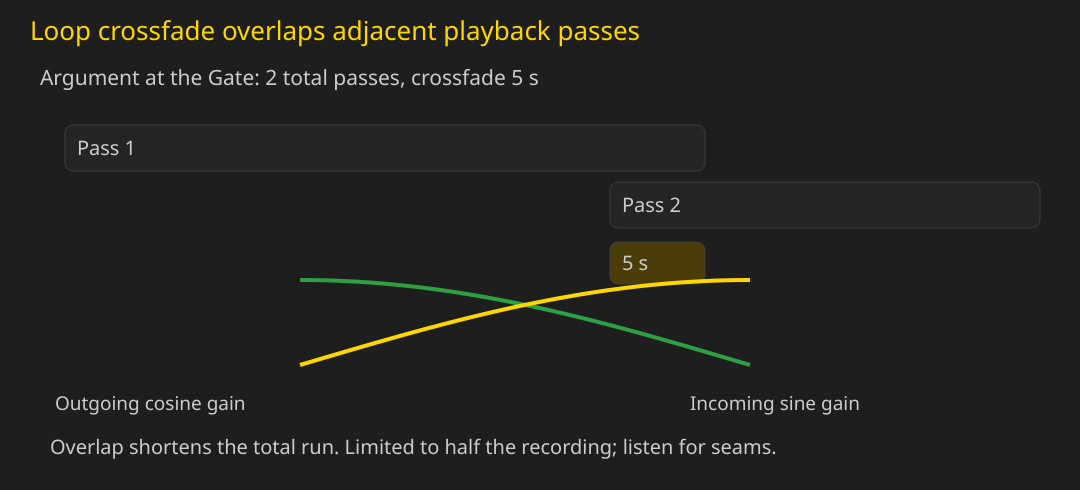
Foreground cues lower selected or all other playing cues. Five fade curves, loop crossfade, attack and release per cue.

Script import

Import ODT, DOCX, TXT or Markdown. Paragraph styles map to script elements. Revision assistant protects existing cue links.

Rehearsal flight recorder

Review recorded cue and operator events on a run timeline, inspect state at a point in the run and compare two performances. Recorded actions are never replayed through audio.

Show Score

Silently simulate cue timing, then inspect an estimated or recorded-run score. Estimated pacing is an assumption; displayed levels are programmed values, not measured room loudness.

Subtitles and audience captions

Build and time subtitle tracks, check reading speed, preview them silently and export WebVTT or SRT. Sound captions are a separate authored audience feed, mirrored in Show Player. Reference-video recording captures subtitle start times while editing; it does not record a movie or control live projection.

Audience access: words first

Review text and translations with deaf and hard-of-hearing audience advisers. Check contrast, reading time and real seating positions; never rely on colour or movement alone. HoH styling is not proof of accessibility compliance. Keep a readable still-text option and rehearse a backup.

Portable projects

A single .ccshow file brings the script, cues, media and permitted fonts together. Computer preferences and local reference libraries remain separate.

PDF exports

Printable cue sheet, script, show score, rehearsal report and the full user guide — all with page numbers and export timestamps.

Project checks and recoverable updates

Preflight can flag missing files and broken references. Supported older project upgrades ask first and create a backup before saving; checks and backups are not a substitute for a separate show backup.

Under the hood

Five fade curves

Five fade curves — linear, smooth, fast start, slow start, exponential

Ducking attack, hold and release

Ducking: attack, hold and release on the demo announcement

Loop crossfade gain shapes

Loop crossfade — overlapping passes with complementary gain curves

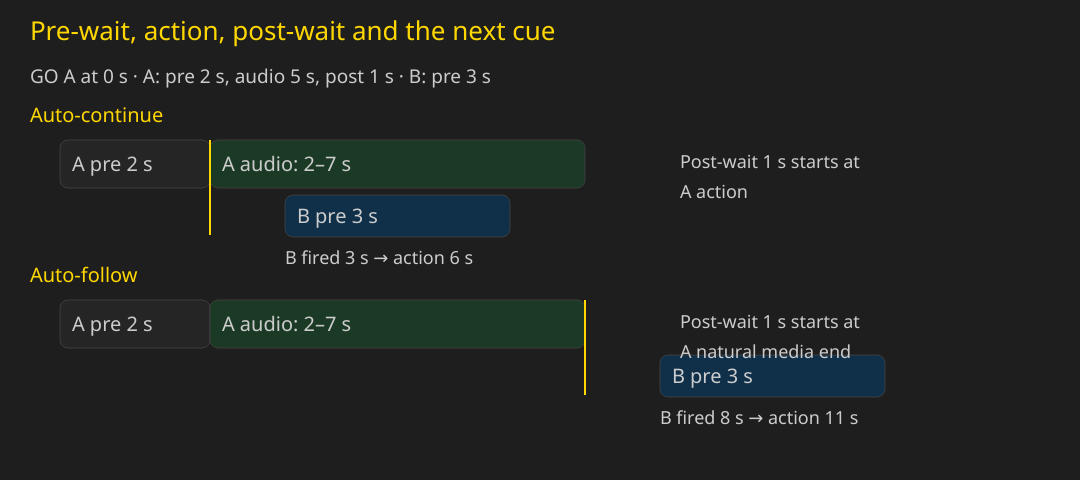
Auto-continue vs auto-follow timing

Auto-continue vs auto-follow with pre-waits drawn to scale

Your guide to Curtain Call

A reference for every stage of your show

From your first cue to rehearsal and performance, the user guide helps you understand the workflow, explore the app's tools and find answers when you need them. Read it before a show and keep a copy available for your team.

The matching v1.1.2 build 20261117 PDF guide includes current export and Audio Description illustrations, a clickable latest-guide URL and QR code on the cover, and GPL licence guidance.

Download the latest guide (PDF)

Downloads

Version v1.1.2  ·  Build 20261117

Choose a complete app for your platform: install or extract and run, with no older version required. Read Release Notes for changes and known limits. In-app delta updates are optional on supported packages.

Windows installer

Windows x64 installer with Start Menu entry, uninstaller and .ccshow file association.

91.3 MB

Download Windows installer

Demo project

The Lighthouse Keeper with all 11 original FLAC recordings, credited to Thomas Park (Mystified). If an older app rejects its size, download here and open the saved project file.

679.7 MB

Download Demo project

Illustrated user guide

PDF edition, build 20261117.

4.8 MB · 293 pages

Download PDF

Version API

External clients can use this JSON API to read the published release metadata without scraping the website. Download values are paths relative to the website root; sizes are keyed by artifact. To update your installed app, compare its version in Help > About Curtain Call with the downloads here.

GET /api/version.php

Returns the current version metadata.

{
  "version": "1.1.2",
  "display_version": "1.1.2",
  "build":   "20261117",
  "year":    "2026",
  "author":  "YZONK",
  "website": "https://curtaincall.yzonk.com",
  "release_notes": "https://curtaincall.yzonk.com/downloads/history.html#v1.1.2-build-20261117",
  "release_archive": "https://curtaincall.yzonk.com/#downloads",
  "downloads": {
    "appimage": "releases/v1.1.2-build-20261117/CurtainCall-linux-x64.AppImage",
    "demo": "releases/v1.1.2-build-20261117/The Lighthouse Keeper - demo v1.1.2 build 20261117.ccshow",
    "web": "releases/web-2026.10.15/curtaincall-web-2026.10.15.zip"
  }
}
GET /api/version.php?check=X.Y.Z

Pass the client's installed version. The response adds up_to_date and checked.

# example: /api/version.php?check=0.0.9
{
  "version":    "1.1.2",
  "display_version": "1.1.2",
  "build":      "20261117",
  "year":       "2026",
  "author":     "YZONK",
  "website":    "https://curtaincall.yzonk.com",
  "release_notes": "https://curtaincall.yzonk.com/downloads/history.html#v1.1.2-build-20261117",
  "release_archive": "https://curtaincall.yzonk.com/#downloads",
  "downloads": {
    "appimage": "releases/v1.1.2-build-20261117/CurtainCall-linux-x64.AppImage",
    "demo": "releases/v1.1.2-build-20261117/The Lighthouse Keeper - demo v1.1.2 build 20261117.ccshow",
    "web": "releases/web-2026.10.15/curtaincall-web-2026.10.15.zip"
  },
  "up_to_date": false,
  "checked":    "0.0.9"
}

About

Curtain Call is made by YZONK. It is the desktop successor of the web version of Curtain Call.

The app was entirely vibecoded — written by AI coding agents directed by the author. Development combines automated regression checks with hands-on workflow testing. The searchable offline manual guides you from your first cue through rehearsal and performance.

Demo music is by Thomas Park (Mystified), from Coming Days and D-Program; the phone announcement was created by YZONK with NaturalReader. See the app's third-party notices for the track list and terms. Questions and ideas: curtaincall@yzonk.com.

Creator of the MAILART.pt cultural project and CurtainCall free show-control app. Your support helps keep these open resources free, active, and continuously growing for everyone. Thank you for empowering independent tools!